The Kindle Scribe arrived with significant fanfare, promising to bridge the gap between Amazon’s renowned e-reading platform and the burgeoning digital notebook market. Positioned as a device for both avid readers and diligent note-takers, it boasts a large E-Ink display, stylus support, and deep integration with the Kindle ecosystem. However, in a landscape increasingly crowded with sophisticated digital writing tools, does the Scribe truly offer a compelling alternative? This review dives deep into its pen feel, PDF annotation capabilities, and overall user experience to determine its place in 2026.
👍 Pros
- Large, crisp 10.2-inch Paperwhite display
- Excellent PDF import and basic annotation tools
- Seamless integration with Kindle library
- Long battery life typical of E-Ink devices
- Premium pen offers better writing experience than basic
👎 Cons
- Pen feel lags behind top-tier E-Ink tablets
- PDF annotation tools could be more robust
- Limited file management and third-party app support
- No color display
- Premium pen adds to the already high cost
Unboxing & First Impressions: What’s Inside the Kindle Scribe Box?
Opening the Kindle Scribe box reveals a minimalist package. Inside, you’ll find the Scribe itself, a USB-C charging cable, and the included stylus (either the Basic or Premium version, depending on the bundle). The device has a premium feel, with a sturdy aluminum casing and a sleek, understated design. The large screen immediately draws attention, promising an expansive canvas for both reading and writing. Initial setup is straightforward, guiding users through Wi-Fi connection and Amazon account login, much like any other Kindle device. However, the true test lies not in the unboxing, but in the daily grind of using it for its intended purposes.
The inclusion of two stylus options – the Basic and the Premium – is a notable point. While both allow for note-taking, the Premium pen adds a dedicated eraser and a shortcut button, which are genuinely useful additions for a fluid writing experience. The decision to bundle the Basic pen with lower-tier models and charge extra for the Premium one, while understandable from a pricing perspective, does impact the out-of-the-box experience for many potential users.

The Kindle Scribe Experience: Pen Feel & Writing Dynamics
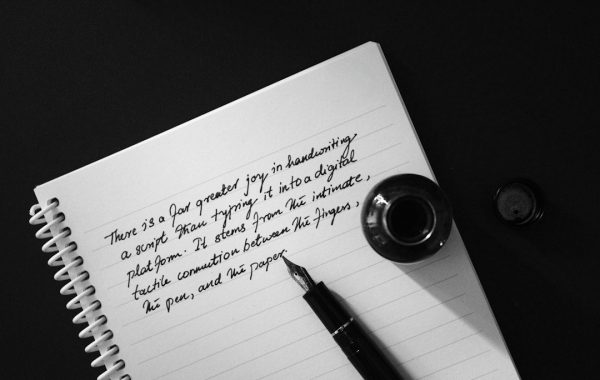
The core appeal of a digital notebook lies in its writing experience. Amazon has equipped the Scribe with a textured glass screen designed to mimic the feel of paper. The included stylus, particularly the Premium version, offers a comfortable grip and decent weight. However, translating the tactile sensation of pen on paper to an E-Ink screen is a notoriously difficult challenge, and the Kindle Scribe, while competent, doesn’t entirely conquer it.
Comparing Kindle Scribe Pen Options: Basic vs. Premium
The difference between the Basic and Premium pens is more than just cosmetic. The Premium pen’s eraser function, activated by flipping the stylus, is a significant quality-of-life improvement. It feels more intuitive than having to select an eraser tool within the software. The customizable shortcut button on the Premium pen can be programmed for quick access to features like highlighting or specific pen types, further streamlining the workflow. While the Basic pen is functional for simple notes, the Premium pen elevates the writing and editing process noticeably, making it a worthwhile upgrade if you plan on extensive note-taking.
Real-World Writing: Does it Feel Like Paper?
Here’s the catch: while Amazon’s screen texture provides some resistance, it doesn’t quite replicate the subtle tooth and feedback of real paper. It’s closer to writing on a smooth, matte tablet screen than a premium notebook. The feedback is somewhat muted, and for users accustomed to the nuanced response of dedicated E-Ink writing devices like the reMarkable series, the Scribe might feel a bit too slick. It’s perfectly usable, and for many, it will be more than adequate, but it doesn’t quite achieve that coveted “writing on paper” sensation.

Precision & Responsiveness: Latency and Accuracy Tests
In terms of latency, the Kindle Scribe performs admirably. The delay between moving the stylus and seeing the ink appear on the screen is minimal, especially with the Premium pen. This responsiveness is crucial for a natural writing flow and prevents the frustrating disconnect that can occur with less advanced devices. Accuracy is also generally good; the stylus tracks precisely where it’s intended to, allowing for detailed notes and diagrams. However, extremely fine linework can sometimes appear slightly thicker than anticipated, a common characteristic of E-Ink displays trying to render varied pressure sensitivity.
User consensus suggests the Kindle Scribe’s writing feel is a significant improvement over standard Kindle devices but falls short of dedicated E-Ink notebooks like the reMarkable 2. Latency is reported as low, with ink appearing almost instantaneously. The textured screen provides some friction, but many users find it less “paper-like” than competitors. The Premium pen’s eraser is consistently praised as a key usability feature. Accuracy is high, though some users note slight line thickness variations.
PDF Annotation Capabilities: A Game Changer for Documents?
One of the most anticipated features of the Kindle Scribe was its ability to annotate PDF documents directly. For students, researchers, and professionals who deal with a constant stream of PDFs, this functionality could be a major advantage. The Scribe integrates PDF handling relatively smoothly into its interface, making it a potentially powerful tool for document review and markup.
Importing & Managing PDFs on Kindle Scribe
Importing PDFs is straightforward. You can send them to your Kindle library via the Send to Kindle feature (web, email, or desktop app), and they appear alongside your books and notebooks. The device handles multi-page documents well, allowing you to navigate through them using familiar swipe gestures. Organizing a large library of annotated PDFs can become cumbersome, however, as the Scribe’s file management system is quite basic, lacking advanced folder structures or tagging capabilities found on more robust tablet systems.

Annotation Tools: Highlighting, Notes, and More
The annotation toolkit on the Scribe is functional but basic. You can highlight text, add sticky notes that appear as pop-up annotations, and write directly onto the PDF page using the stylus. The writing appears as if it’s on a transparent layer over the PDF. While this covers the essentials, it lacks the more advanced features found on dedicated PDF editors or even some other E-Ink tablets. There are no options for drawing shapes, adding text boxes directly into the PDF, or using different pen styles with varying opacity for more nuanced markup. The available pens are limited, and the color options are restricted to black ink on the monochrome display.
Exporting & Sharing Annotated PDFs: Workflow Integration
Once you’ve marked up a PDF, you can export the annotated version. Similar to importing, this is done via the Send to Kindle feature. The exported PDF contains your annotations, either embedded directly or as a flattened layer, depending on the method. While this allows you to share your notes with others or move them to a different device for further processing, the workflow isn’t as seamless as dedicated productivity tools. There’s no direct integration with cloud storage services like Dropbox or Google Drive, requiring an extra step to get annotated files into those ecosystems.
PDF import via Send to Kindle is generally seamless. Users appreciate the ability to write directly on PDFs. However, criticism often centers on the limited annotation tools (lack of shapes, text boxes, varied pen styles) and basic file management. Exporting works, but direct cloud integration is missing, adding friction to professional workflows. The monochrome display means annotations are always black and white.
Beyond Notes: Kindle Scribe’s Reading & E-reading Features
It’s crucial to remember that the Kindle Scribe is, at its heart, still a Kindle. Its reading experience is top-notch, leveraging Amazon’s extensive library and sophisticated E-Ink display technology.
Seamless Integration with Amazon’s Kindle Ecosystem
This is arguably the Scribe’s strongest suit. If you’re already invested in the Kindle ecosystem, the Scribe offers unparalleled access to your library. Books sync automatically, Whispersync ensures your reading progress is maintained across devices, and features like X-Ray and Goodreads integration are present. For avid readers who also want to jot down notes related to their books, this integration is a significant convenience.

Display Quality & Comfort for Extended Reading Sessions
The 10.2-inch Paperwhite display is a joy for reading. With a 300 ppi resolution, text is exceptionally sharp and clear. The adjustable front light, including warm light options, makes reading comfortable in any lighting condition, from bright sunlight to a dark bedroom. The large screen real estate means fewer page turns and a more immersive reading experience, especially for textbooks or documents with dense text. Unlike color LCD or OLED screens, the E-Ink display eliminates glare and is much easier on the eyes for long reading sessions.
Battery Life & Charging: Powering Your Productivity
One of the perennial advantages of E-Ink devices is their exceptional battery life, and the Kindle Scribe is no exception. Amazon claims “weeks” of battery life, and real-world usage generally supports this, provided you aren’t constantly writing or using the front light at maximum brightness. Heavy writing and annotation will naturally drain the battery faster than reading alone. Charging is done via USB-C, a welcome standard, and a full charge typically takes a couple of hours. This long endurance makes it an ideal device for travel or for users who prefer not to charge their devices daily.
Software & Features: Notebook, To-Do Lists, and Beyond
Beyond PDF annotation and reading, the Scribe offers dedicated notebook features and other organizational tools.
Creating and Organizing Notebooks
The Notebook section allows you to create new notebooks with various rule types (lined, grid, blank, etc.). You can create as many notebooks as you need and organize them into folders. While functional, the interface for managing a large number of notebooks and pages can feel a bit clunky. Navigating between different notebooks or finding a specific page requires several taps, which can interrupt the creative flow.
Utilizing Templates for Specific Tasks
The Scribe comes with a selection of pre-designed templates, including planners, trackers, and to-do lists. These can be quite useful for structuring your thoughts and tasks. For instance, using a weekly planner template can help you map out your schedule alongside your reading. However, the variety of templates is somewhat limited, and there’s currently no way to import custom templates, which restricts the device’s adaptability for highly specialized workflows.
👍 Pros
- Excellent reading experience with sharp text and adjustable warm light
- Long battery life
- Premium pen’s eraser and shortcut button are effective
- Simple PDF annotation is useful for basic markups
👎 Cons
- Writing feel not as natural as competitors
- Limited PDF annotation features
- Basic file and notebook organization
- No color display
- High price point, especially with Premium pen
Kindle Scribe vs. Competitors: Standing Out in the Digital Notebook Market
The digital notebook and E-Ink tablet market is competitive, featuring established players like reMarkable and various Android tablets with E-Ink screens. The Scribe’s main advantage is its Kindle ecosystem integration and superior reading experience.
Key Differentiators: What Makes Scribe Unique?
The Scribe’s unique selling proposition is its dual nature: a high-quality e-reader that can also function as a digital notebook. For users prioritizing a seamless reading experience with the added benefit of note-taking and PDF annotation, it’s a compelling package. Its integration with Amazon’s vast content library is unmatched by any competitor. Furthermore, the large screen size on a Kindle device is a significant differentiator.
Performance Benchmarks Against Leading Tablets and E-readers
Compared to other E-Ink tablets like the reMarkable 2, the Scribe offers a better reading experience but a less refined writing feel. Competitors like the Boox Note Air series offer more features, including color displays and Android app support, but often at the expense of battery life or a less streamlined user experience. Dedicated e-readers like the Kindle Oasis or Kobo Libra 2 offer a superior reading-only experience but lack any significant note-taking or annotation capabilities.
The Kindle Scribe occupies a middle ground. It excels as an e-reader with its large, clear display and integration with Amazon’s ecosystem. As a digital notebook, it’s competent for basic notes and PDF annotation but lacks the nuanced writing feel and advanced features of specialized devices like the reMarkable 2 or Boox tablets. Competitors often offer more robust software (e.g., Android apps on Boox) or a superior writing experience (reMarkable 2), but typically not both alongside a first-class e-reading platform.
Who is the Kindle Scribe For? Identifying the Ideal User
The Kindle Scribe is best suited for avid readers who also engage in moderate note-taking or document annotation. If you spend a significant amount of time reading Kindle books, academic papers, or professional documents, and you value the convenience of having it all on one device with a paper-like display, the Scribe is a strong contender. It’s particularly appealing to existing Amazon ecosystem users who want to enhance their reading experience with annotation capabilities without compromising on screen quality or battery life. It’s less ideal for users who demand the most natural pen-on-paper feel or require advanced digital art or note-taking features beyond basic markup.
Common Gripes & Potential Improvements for Future Iterations
Despite its strengths, the Scribe isn’t without its flaws. Users frequently point to the writing experience as needing refinement – a more textured screen or different stylus technology could significantly improve the “paper feel.” The PDF annotation tools, while functional, could benefit from expansion, including features like shape recognition, text boxes, and a wider array of pen styles. Enhanced file management, including better folder organization and direct cloud storage integration, would also be a welcome addition. A color E-Ink display, while perhaps technically challenging and expensive for a Kindle device, would further enhance its appeal for certain types of document annotation and reading.
Final Verdict: Is the Kindle Scribe the Ultimate Digital Notebook in 2026?
The Kindle Scribe is a capable device that successfully merges Amazon’s exceptional e-reading prowess with the functionality of a digital notebook. Its large, comfortable display, long battery life, and deep Kindle ecosystem integration make it a fantastic choice for dedicated readers who want to annotate PDFs and take notes. However, it falls short of being the “ultimate” digital notebook. The writing experience, while improved, doesn’t quite match the tactile feedback of its specialized competitors. The annotation tools are functional but basic. For its price, especially when opting for the Premium pen, users might expect a more refined writing dynamic. Ultimately, the Kindle Scribe is a strong contender for readers who occasionally need to write, but for power users focused solely on digital note-taking or digital art, other devices might offer a more tailored and superior experience.