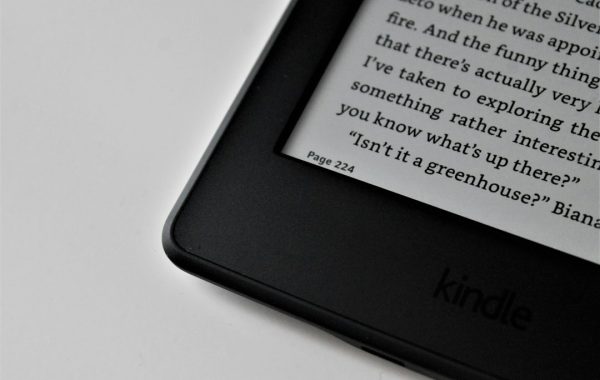
🧰 Tools & Gear You’ll Need
- E-Ink Tablet (e.g., Remarkable 2, Boox Note Air Series, Kindle Scribe)
- Stylus compatible with your chosen E-Ink device
- Cloud storage service (e.g., Google Drive, Dropbox, OneDrive, iCloud)
- Scanning app (e.g., Microsoft Lens, Adobe Scan, Evernote Scannable)
- Note-taking/document management software (e.g., Evernote, Notion, Obsidian, OneNote)
- Optional: Stylus tips, protective sleeve/case for your device
Why Go Paperless with E-Ink? The Core Advantages
The siren song of a paperless office has been sung for decades, yet many of us still wrestle with overflowing inboxes, stacks of notebooks, and the environmental guilt that accompanies it all. The E-Ink revolution offers a tangible, sustainable, and surprisingly pleasant path forward. It’s not just about ditching paper; it’s about fundamentally rethinking how we interact with information, boosting focus, and streamlining our digital lives.
Beyond the Buzzwords: Real Benefits for Productivity
Forget the vague promises of “enhanced productivity.” With E-Ink, the benefits are concrete and directly address the friction points of traditional digital workflows. The unique display technology mimics the look of real paper, drastically reducing eye strain during long reading or writing sessions – a common complaint with backlit LCD or OLED screens. This visual comfort translates into longer, more focused work periods. Furthermore, the tactile experience of writing on an E-Ink screen with a stylus provides a satisfying feedback loop that many find more conducive to learning and retention than typing or swiping. It bridges the gap between the physicality of analog note-taking and the digital advantages of searchability and organization.
E-Ink vs. Traditional Screens: A Workflow Lover’s Perspective
Here’s the crux of it: traditional screens are designed for dynamic, fast-paced content – think websites, videos, and apps. They demand constant visual engagement and can be a playground for distractions. E-Ink, conversely, is built for static or slow-changing content. Its refresh rate is slower, making it less ideal for video but *perfect* for reading documents, taking notes, and reviewing lengthy texts without the visual fatigue and the temptation to jump between tabs. For the workflow aficionado, this means a dedicated tool that silences the digital noise. It’s a single-purpose device that excels at its primary functions, fostering a deep work environment that’s increasingly rare in our hyper-connected world. The lack of a distracting backlight also means you can read and write comfortably in bright sunlight or dim conditions, much like you would with a physical book or notepad.
Laying the Foundation: Essential E-Ink Devices for a Paperless Life
Choosing the right E-Ink device is the first, and perhaps most critical, step in your paperless journey. The market offers a spectrum of options, each with its strengths. Don’t just chase specs; consider your primary use case. Are you a voracious reader who annotates heavily? A dedicated note-taker? Or someone who needs a flexible device for both?
Choosing Your E-Ink Canvas: Tablets, Notepads, and Readers
Broadly, E-Ink devices fall into a few categories. E-Ink tablets are the most versatile, offering robust note-taking, PDF annotation, and often a broader app ecosystem. E-Ink notepads are purpose-built for handwriting, prioritizing a distraction-free writing experience. Dedicated E-Ink readers, while historically focused on books, are increasingly incorporating note-taking features, making them a hybrid option. The key differentiator is often the operating system and the stylus experience.
Remarkable 2: The King of Note-Taking?
The reMarkable 2 has carved out a significant niche by focusing intensely on the writing and sketching experience. Its ultra-thin profile, premium feel, and remarkably paper-like surface make it a joy to use for handwriting. Its software is intentionally minimalist, designed to keep you focused. It excels at note organization, PDF annotation, and offers a basic cloud sync. However, its limited app support and proprietary file format can be a drawback for those needing deep integration with other digital tools. It’s the purist’s choice for analog-feeling digital note-taking.

Boox Note Air Series: Versatility Unpacked
Boox devices, running a customized version of Android, offer unparalleled versatility. The Note Air series, in particular, balances a sleek design with a powerful feature set. You get robust note-taking and PDF capabilities, similar to reMarkable, but crucially, you can also install Android apps. This means you can access cloud storage directly, use apps like Evernote or Notion, and even browse the web or read from various sources. This flexibility comes at the cost of a slightly more complex interface and potentially a less “pure” paper-like feel compared to reMarkable, but for users who need their E-Ink device to play well with their existing digital ecosystem, Boox is often the answer.
Kindle Scribe: Reading Meets Writing
Amazon’s entry into the E-Ink writing space, the Kindle Scribe, leverages its massive Kindle library. If your primary goal is to read and annotate ebooks and PDFs, it’s a compelling option. The writing experience is solid, and the integration with Amazon’s ecosystem is seamless. However, its note-taking features are less mature than reMarkable or Boox, and its broader functionality is more limited. It’s best suited for avid Kindle users who want to add a writing layer to their reading habits.
Other Contenders: Assessing Niche Players
Beyond these heavyweights, smaller players and older models exist. Some devices might offer color E-Ink (still nascent and often with compromises), while others might focus on specific professional niches like legal document review. Always research the specific device’s software update history, community support, and stylus technology. A device that feels great to write on today might become obsolete quickly if not supported.
Digitizing Your Analog World: Capture and Import Strategies
Transitioning to paperless isn’t just about buying new hardware; it’s about developing new habits for capturing and integrating information. Your existing analog notes, documents, and even business cards need a digital home. This stage is crucial – if you can’t effectively get your old information into your new system, the transition will feel incomplete.
Scanning the Essentials: Apps and Techniques
For physical documents you need to keep, a high-quality scanning app on your smartphone is your best friend. Apps like Microsoft Lens, Adobe Scan, and Evernote Scannable (if you use Evernote) are excellent. They use your phone’s camera to capture documents, automatically detect edges, correct perspective, and enhance readability. The key is developing a consistent process: scan immediately, name files logically (more on this later), and process them promptly.
Scan Documents
Open your chosen scanning app. Position your phone directly above the document, ensuring good lighting and minimal shadows. The app will typically auto-detect the page borders.
Adjust and Enhance
After capturing, review the scan. Most apps allow you to crop, rotate, and apply filters (like black and white or document enhancement) to improve clarity. Ensure all text is crisp and legible.
Save and Organize
Save the scanned document with a clear, descriptive filename. Tag it if your app supports tagging. Choose a format like PDF or JPG. Aim for consistency in your naming convention.
Seamless Integration: Connecting Your E-Ink to the Cloud
The real power of paperless comes when your E-Ink device talks to your cloud storage. Most E-Ink tablets offer direct integration with services like Google Drive, Dropbox, OneDrive, or iCloud. This allows you to:
- Sync notes: Automatically upload your handwritten notes and annotations to your cloud.
- Access files: Open PDFs, documents, and other files stored in your cloud directly on your E-Ink device for review and annotation.
- Export work: Save annotated documents back to the cloud, making them accessible on your other devices.
Setting this up is usually straightforward via the device’s settings menu. Ensure you understand the sync settings – do you want two-way sync, or just one-way uploads? For critical workflows, a robust cloud backup is non-negotiable.

Reimagining Your Workflow: E-Ink in Action
This is where the magic happens. Moving your core tasks to an E-Ink device isn’t just about replicating paper; it’s about enhancing these tasks with digital benefits while retaining the focus of analog tools.
Task Management and To-Do Lists on E-Ink
Forget cluttered paper to-do lists or distracting digital apps. E-Ink provides a focused space. Many note-taking apps allow you to create checklists that you can physically tick off with your stylus. For more advanced task management, consider using apps like Notion or Todoist (if your device supports them) or simply dedicating a section of your notes to tasks, perhaps using tags or symbols for status. The tactile act of marking a task as complete on an E-Ink screen is surprisingly satisfying.
Note-Taking and Meeting Minutes Reimagined
This is arguably E-Ink’s killer app. During meetings, quickly jot down key points, action items, and decisions. Later, you can easily search these notes (if your device/software supports OCR – Optical Character Recognition), tag them, and even export them as PDFs. The ability to quickly sketch diagrams or mind maps alongside text is invaluable for visual thinkers.
Document Review and Annotation Without the Clutter
Contracts, reports, manuscripts – any lengthy document that requires review and markup is a prime candidate for E-Ink. Upload the PDF to your device, and use the stylus to highlight, underline, add comments in the margins, or even redraft sections. This is far superior to printing reams of paper, and the E-Ink display makes prolonged review sessions comfortable. Once done, export the annotated PDF back to your cloud or share it directly.
Reading and Research in a Focused E-Ink Environment
Academic papers, industry reports, long articles – these are perfect for E-Ink. Download them as PDFs or EPUBs and read them distraction-free. Many devices allow you to highlight text and add notes directly within the document. This focused reading environment can significantly improve comprehension and retention compared to reading on a multi-purpose tablet or computer.

Advanced Paperless Strategies with E-Ink
Once you’ve mastered the basics, E-Ink can become the cornerstone of sophisticated knowledge management and creative processes.
Building a Personal Knowledge Management (PKM) System
Your E-Ink device can be the primary interface for your PKM system (e.g., using tools like Obsidian, Logseq, or even a well-structured set of notes in Evernote/Notion). Use it to capture fleeting ideas, flesh out concepts, link notes together, and review your knowledge graph. The tactile nature of inputting information can reinforce learning and connection-making, which are central to PKM.
Leveraging E-Ink for Creative Workflows
Writers can use E-Ink for drafting, outlining, and editing. Artists and designers can use the stylus for sketching, brainstorming visual ideas, or creating storyboards. The distraction-free nature and the feel of writing/drawing can unlock creativity that might be stifled by more complex digital tools.
The Hidden Pitfalls: Overcoming Common Transition Challenges
The transition isn’t always smooth. Common hurdles include:
- File Management Chaos: Without a clear naming convention and folder structure, your digital notes can become as messy as a pile of paper.
- Over-Reliance on a Single Tool: Believing one device can do everything perfectly.
- App Ecosystem Lock-in: Getting stuck with proprietary formats or limited app availability.
- Input Lag Frustration: Some E-Ink devices have noticeable input lag, which can be maddening for fast typists or annotators.
- The “Digital Mess” Syndrome: Simply scanning everything without a system for processing or discarding it.
Maintaining Momentum: Long-Term Paperless Success
Adopting a paperless workflow is a marathon, not a sprint. Consistent habits and proper maintenance are key to long-term success.
Digital Organization Best Practices
Your E-Ink notes and documents need a robust organizational structure. Implement a clear folder system in your cloud storage. Utilize tags effectively within your note-taking application. Regularly archive old projects or notes to keep your active workspace clean. Schedule brief, regular times (e.g., weekly) to process new notes, file documents, and review your task list.
E-Ink Maintenance and Longevity Tips
E-Ink devices are generally durable, but proper care extends their life. Always use a screen protector and a case to guard against scratches and drops. Clean the screen gently with a microfiber cloth. Be mindful of extreme temperatures, which can affect the E-Ink display. Keep your device’s firmware updated for the latest features and security patches.

Your E-Ink Paperless Future: Next Steps
The journey to a truly paperless workflow with E-Ink is empowering. It’s about reclaiming focus, reducing clutter, and interacting with information in a more intentional, comfortable way. Start small, choose a device that fits your primary needs, develop consistent habits for digitization and organization, and you’ll soon wonder how you ever managed without it. The future of focused work is here, and it looks remarkably like paper.