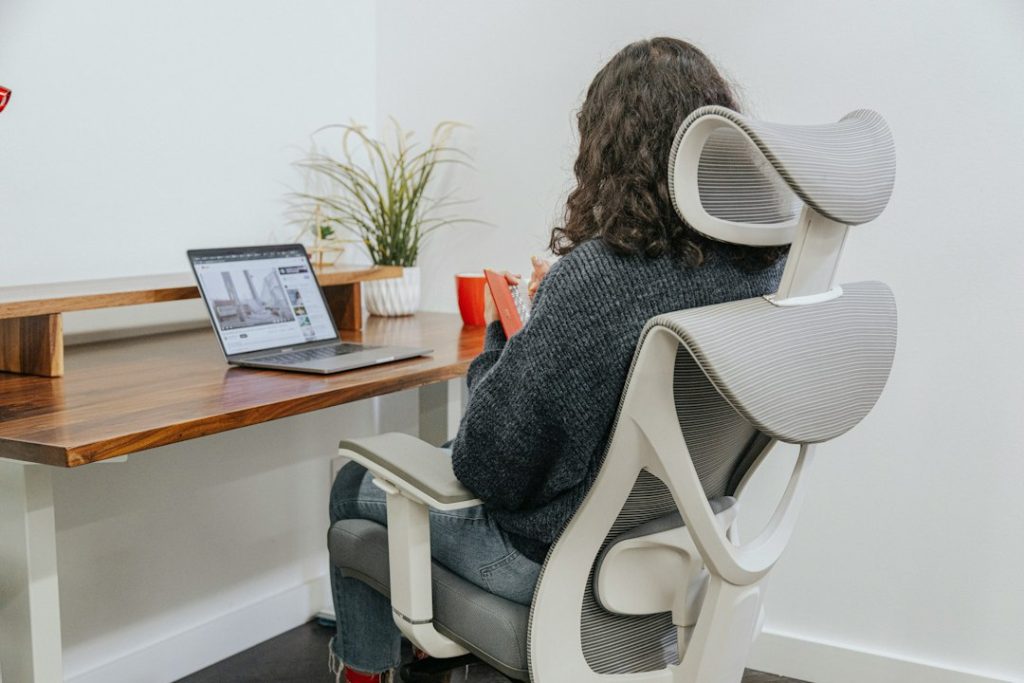
🧰 Tools & Gear You’ll Need
- Your ergonomic office chair
- A stable surface to sit on (your desk chair is ideal)
- Optional: A small mirror to check your posture
- Optional: A tape measure for precise adjustments
The persistent ache in your lower back after a long workday isn’t just a nuisance; it’s a warning sign your body is sending. For anyone spending significant hours at a desk, particularly in the remote work era, lower back pain has become an epidemic. While many factors contribute, a primary culprit is often an improperly adjusted ergonomic office chair, specifically its lumbar support. This isn’t about fancy features or premium brands; it’s about understanding the fundamental mechanics of your spine and how to make your chair an ally, not an adversary, in maintaining spinal health. This guide cuts through the jargon and gets straight to the practical, hard-won advice you need to dial in your lumbar support for a pain-free back in 2026.
The Crucial Role of Lumbar Support in Preventing Lower Back Pain
Let’s be blunt: lumbar support isn’t a luxury; it’s a non-negotiable component of an ergonomic setup designed to combat the detrimental effects of prolonged sitting. Without it, your spine is left to fend for itself against gravity and the unnatural forces imposed by a static sitting posture.
Understanding Your Spine’s Natural Curve
Your spine isn’t a straight rod. It possesses natural curves: a forward curve (lordosis) in your neck and lower back, and a backward curve (kyphosis) in your upper back. The lumbar region, your lower back, has a distinct inward curve. This ‘S’ shape is crucial for shock absorption, flexibility, and distributing weight evenly. When you sit, especially for extended periods, this natural lordotic curve tends to flatten out, putting undue stress on the spinal discs and muscles.

How Improper Support Leads to Pain
When your chair’s lumbar support is absent, too low, too high, or too deep, it fails to adequately maintain that natural inward curve. This forces the muscles and ligaments in your lower back to work overtime to keep you upright, leading to strain, fatigue, and eventually, pain. Over time, this can contribute to more serious issues like disc compression, herniation, and chronic back conditions. Think of it like trying to hold a flexible arch in place with no support structure – eventually, it sags and strains.
Decoding Your Ergonomic Office Chair’s Lumbar Support Features
Not all lumbar support is created equal, and frankly, not all chairs offer meaningful adjustment. You need to know what you’re working with before you can effectively adjust it.
Identifying Your Chair’s Lumbar System (Adjustable vs. Fixed)
The first step is a quick inspection. Does your chair have a distinct, often curved, protrusion in the lower back area? Can you move it?
- Fixed Lumbar Support: Many budget-friendly or older chairs have a permanently molded or built-in lumbar curve. If this curve doesn’t align with your spine’s natural inward curve, your options are limited, often to adding external cushions or replacing the chair.
- Adjustable Lumbar Support: Higher-quality ergonomic chairs feature adjustable systems. These can range from simple manual sliders to more complex mechanisms with knobs, levers, or even inflatable bladders. Knowing which type you have is key to unlocking its potential.
Key Adjustment Mechanisms Explained (Height, Depth, In/Out)
Once you’ve identified an adjustable system, familiarize yourself with its controls. The most common adjustments include:
- Height Adjustment: This allows you to move the lumbar support up or down the backrest. The goal is to position the support directly in the curve of your lower back.
- Depth/In-Out Adjustment: This controls how much the support “sticks out” from the backrest. You can push it further in for less pressure or pull it out for more pronounced support.
- Pressure/Tension Adjustment: Some advanced chairs (especially those with internal mechanisms or inflatable bladders) allow you to control the firmness or pressure of the support.
Don’t be shy about exploring these. Most chairs have intuitive controls, often located on the back or underside of the seat/backrest.

Step-by-Step Guide: Adjusting Lumbar Support for Optimal Spinal Alignment
This is where the rubber meets the road. Forget guesswork; follow these steps meticulously for a precise, body-aligned setup.
Initial Chair Setup for Neutral Posture
Before touching the lumbar support, get the basics right. Adjust your seat height so your feet are flat on the floor (or a footrest), with your knees bent at roughly a 90-degree angle. Ensure your hips are slightly higher than your knees. Sit back fully in the chair so your back is against the backrest. This initial setup puts your pelvis in a neutral position, which is the foundation for proper spinal alignment.
Locating and Adjusting Lumbar Support Height
Now, find your chair’s lumbar support. If it’s adjustable, move it up and down until it nests comfortably into the natural inward curve of your lower back. This is typically around the beltline or slightly above. You should feel it making contact without pushing you forward. If you have a mirror, use it to visually confirm the support is positioned correctly within the curve of your spine.
Fine-Tuning Lumbar Support Depth and Pressure
With the height set, adjust the depth. Start with the support not protruding too far. You want gentle, consistent contact. Sit upright and feel where the support is making pressure. If it feels too intense or is pushing you off balance, retract it slightly. If you barely feel it, extend it a little. For chairs with pressure controls, aim for a firmness that supports without causing discomfort or stiffness.
The “Feel Test” – Finding Your Sweet Spot
This is the most critical step. Sit in your adjusted chair for at least 15-20 minutes. Pay close attention to how your lower back feels. Is there gentle, consistent pressure? Does it feel supported? Are you able to maintain an upright posture without slouching or straining? If you feel any pinching, discomfort, or an urge to lean forward, make small adjustments to the depth or height. The “sweet spot” is where you feel supported and aligned, allowing your back muscles to relax.

Common Mistakes to Avoid When Adjusting Lumbar Support
Even with the best intentions, common errors can sabotage your efforts. Knowing these pitfalls is half the battle.
The “Too Much Support” Trap
As mentioned, over-enthusiastic adjustment is a primary offender. Pushing the lumbar support too far forward or setting it too high creates an unnatural curve, forcing your pelvis into a posterior tilt (tucking under) and rounding your upper back. This negates the benefits and can even exacerbate pain. Remember, ergonomics is about facilitating your body’s natural alignment, not forcing it into an artificial position.
Ignoring Your Body’s Feedback
Your body talks. Pain, stiffness, numbness, or the urge to constantly shift are all signals. If after adjusting, you feel any of these, the support is likely incorrect. Don’t just “power through” it. Re-evaluate the height, depth, and pressure. Your unique spinal structure dictates what feels right; generic settings are just a starting point.
Over-Adjusting and Constant Re-Adjustments
Finding the right spot might take a few tries, but once you’re close, resist the urge to constantly fiddle with it. Constant micro-adjustments throughout the day indicate you haven’t found the stable, comfortable position yet. Take the time initially to get it right. Once dialed in, your focus should be on maintaining good posture and taking breaks, not on tweaking the chair.
Beyond Lumbar Support: Holistic Ergonomic Strategies for Back Health
While lumbar support is critical, it’s just one piece of the ergonomic puzzle. A comprehensive approach is essential for long-term back health.
Desk Height and Monitor Positioning Synergy
Your desk height should allow your elbows to rest at roughly 90 degrees with relaxed shoulders when typing. Your monitor should be positioned at arm’s length, with the top of the screen at or slightly below eye level. These elements work in concert with lumbar support. If your monitor is too low, you’ll hunch; if your desk is too high, you’ll perch uncomfortably, all impacting your lower back.

The Importance of Movement and Regular Breaks
No matter how perfectly adjusted your chair is, prolonged static sitting is detrimental. The human body is designed to move. Aim for short breaks every 30-60 minutes. Stand up, stretch, walk around. Even simple movements like standing up and sitting back down can help re-engage muscles and relieve pressure on the spine. Consider a standing desk or a treadmill desk for greater variety.
Complementary Tools for Back Pain Relief (e.g., Footrests, Seat Cushions)
Sometimes, your chair alone isn’t enough, or you might need extra support.
- Footrests: Essential if your feet don’t comfortably reach the floor even with seat height adjustments. They help maintain proper leg and hip posture.
- Seat Cushions: A firm, supportive cushion can alter your seating height and angle, sometimes improving pelvic tilt and lumbar engagement, especially if your chair’s seat is too deep or flat.
- External Lumbar Rolls: If your chair lacks adequate support, a dedicated lumbar roll or cushion can be a lifesaver, but ensure it’s positioned correctly to avoid forcing an unnatural posture.
Troubleshooting Persistent Lower Back Pain: When to Seek Professional Help
If you’ve meticulously followed these guidelines and still experience significant or worsening lower back pain, it’s time to consult experts.
Recognizing Red Flags Indicating Serious Issues
Certain symptoms are not just about poor ergonomics and warrant immediate medical attention. These include:
- Sudden, severe pain
- Pain accompanied by fever, chills, or unexplained weight loss
- Numbness, tingling, or weakness in your legs or feet
- Loss of bladder or bowel control
- Pain that doesn’t improve with rest or worsens at night
These could indicate underlying medical conditions that require professional diagnosis and treatment.
Consulting Ergonomic Specialists and Healthcare Providers
For persistent, non-emergency pain related to your workstation, an ergonomic specialist can perform a detailed assessment of your setup and recommend specific adjustments or equipment. A physical therapist or chiropractor can provide targeted treatment, exercises, and advice for managing back pain and improving spinal function. Don’t hesitate to seek professional guidance; your long-term health is worth the investment.